 MechPilot
Demo
Design by writing. Point. Change. Print.
A ten-minute walkthrough of MechPilot with the assistant: a part from one sentence, step by step to a 3D part, a change on a face you point at, and the dimensioned A3 drawing as a PDF. Nothing the assistant proposes is applied until you click Accept, and every accepted proposal is one undo step.
Chapters
Before the demo
- Start the app (
npm run devor the installed app), dark theme, white canvas if the projector is bright (View menu). - Assistant tab: provider Claude, model Claude Opus 5.5, key stored (green "Key stored").
- Close any open file: File > New.
Step 1 A bearing housing from one sentence (2D)
Type in the Assistant tab:
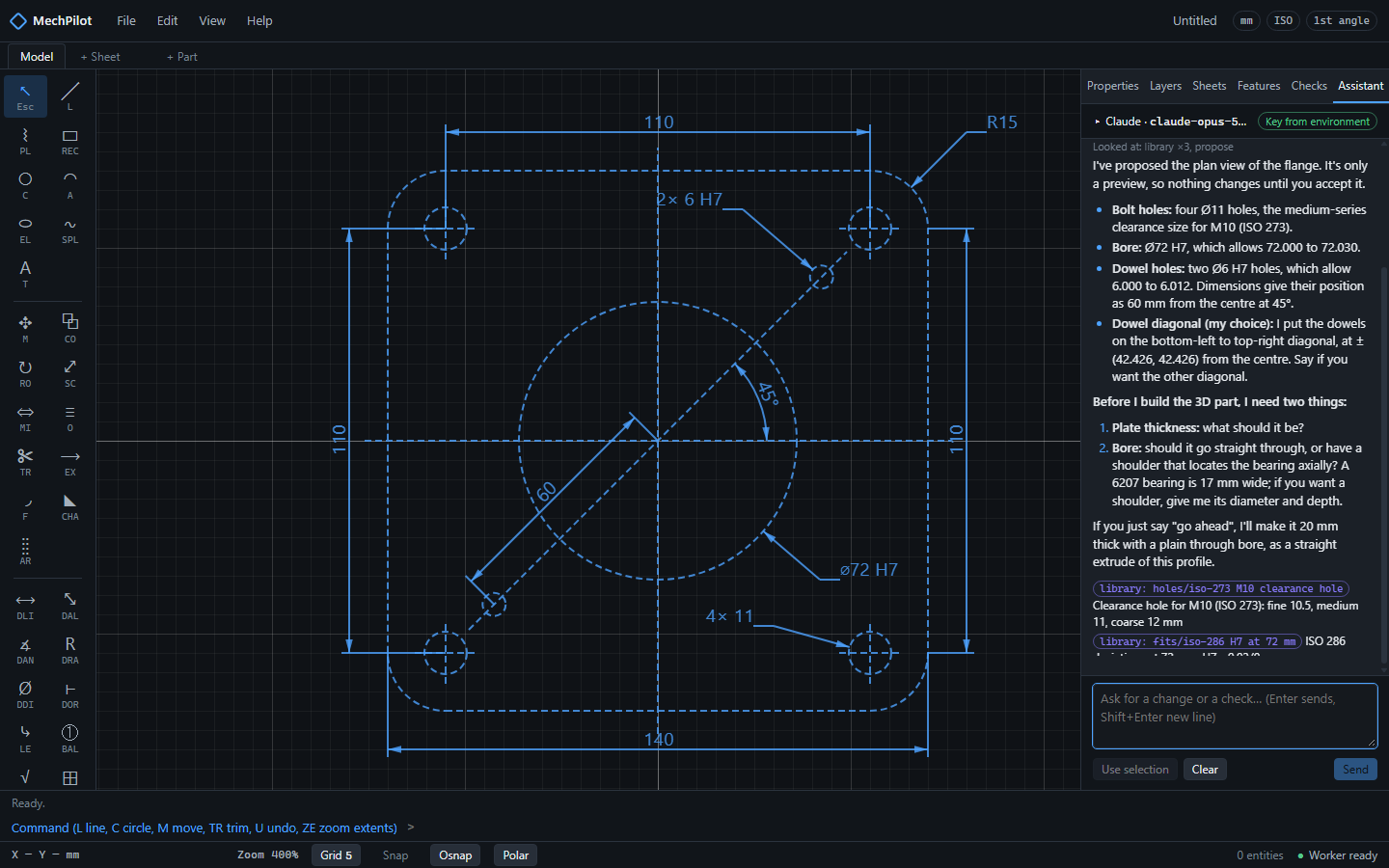
You typeA bearing housing flange for a 6207 bearing: a 140 × 140 mm square plate with R15 corners, four Ø11 clearance holes for M10 on a 110 × 110 pattern, two Ø6 H7 dowel holes on one diagonal at 60 mm from the centre, and a central Ø72 H7 bore for the bearing's outer ring.
What to show: the proposal card lists what it will add, the claims say where each number comes from (Ø11 for M10 from library/holes/iso-273 medium series; H7 deviations from ISO 286), and the drawing shows the ghost preview. Click Accept. Press U once to show it is one undo step, then REDO.
Step 2 Step by step to a 3D part
You typeMake it a 3D part: extrude the plate 15 mm with every hole through.
Accept. The 3D tab opens with the body; the Features tab shows the tree. Then:
You typeAdd a Ø100 boss, 30 mm tall, on top around the bore; keep the Ø72 H7 bore through it and chamfer both ends of the bore 1 × 45°.
Accept, rotate the view. Then the back and the cover:
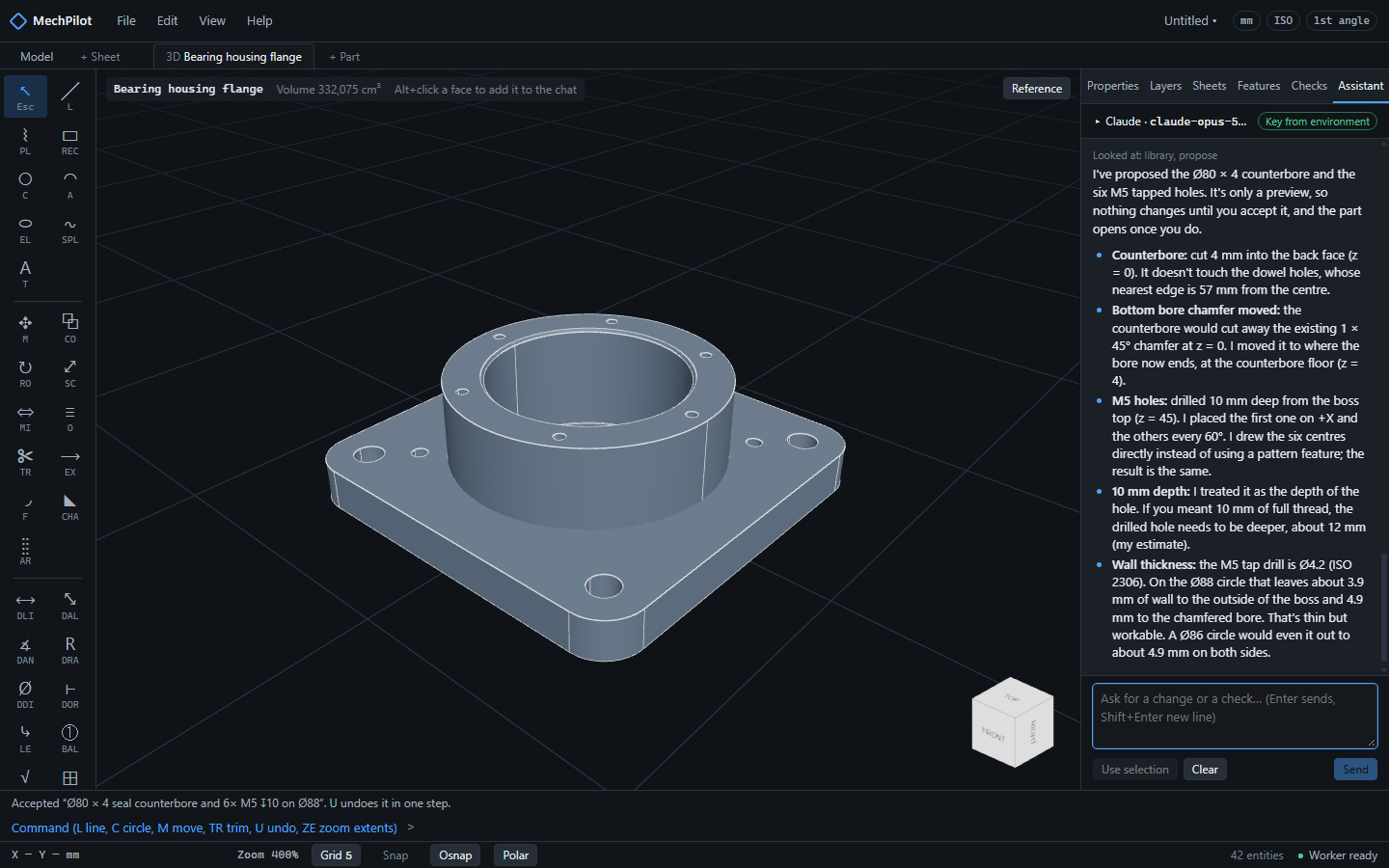
You typeOn the back face add a Ø80 counterbore 4 mm deep for the shaft seal, and on the top of the boss a circular pattern of six M5 tapped holes on a Ø88 circle, 10 mm deep.
Accept. Then an impossible request, to show honesty:
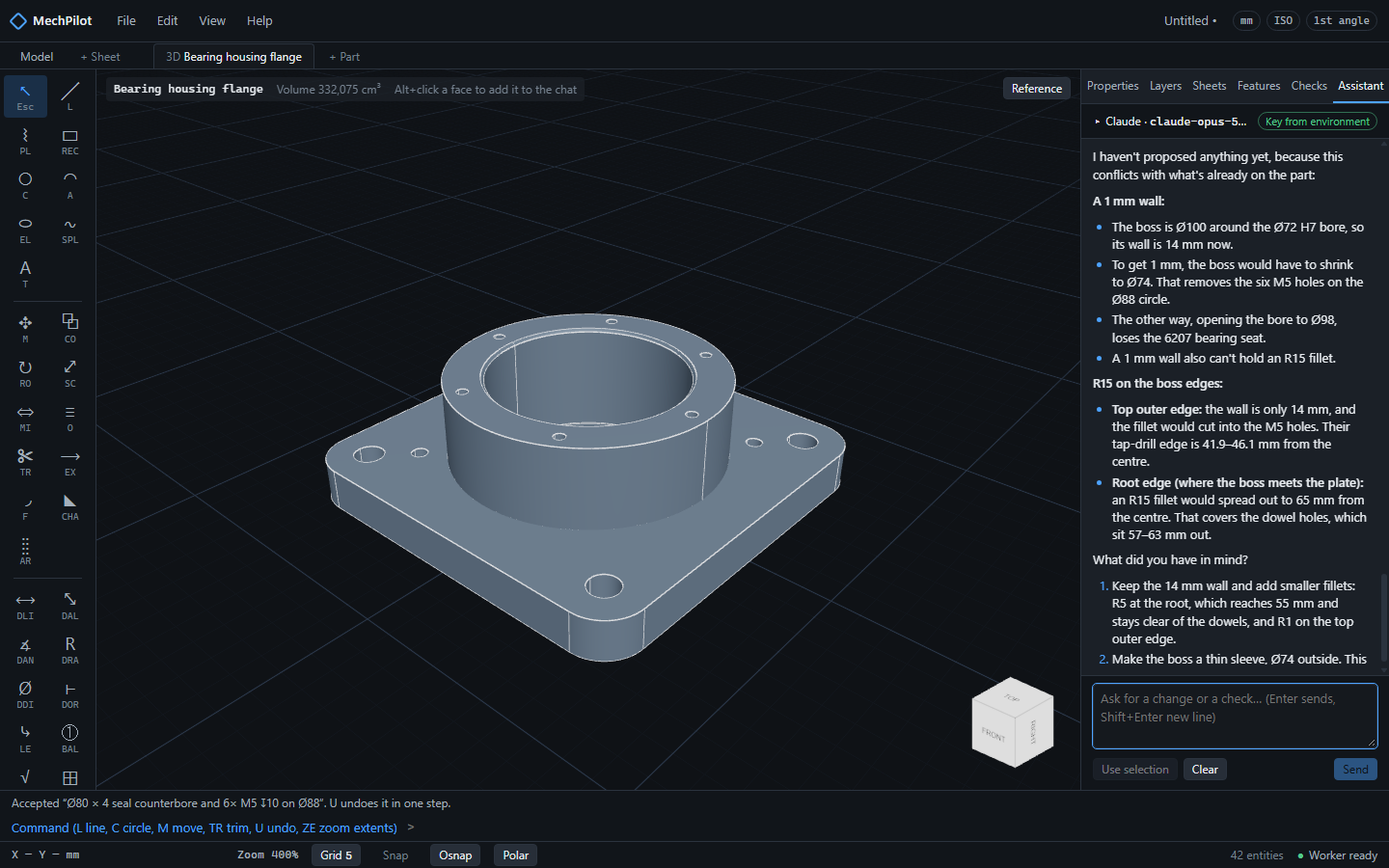
You typeMake the boss wall 1 mm thick and fillet its edges with R15.
The assistant answers with the real numbers from the model (the wall is 14 mm, a 1 mm wall cannot take an R15, the bearing seat needs its length) and offers options; nothing is applied.
Step 3 Point at something and ask for a change
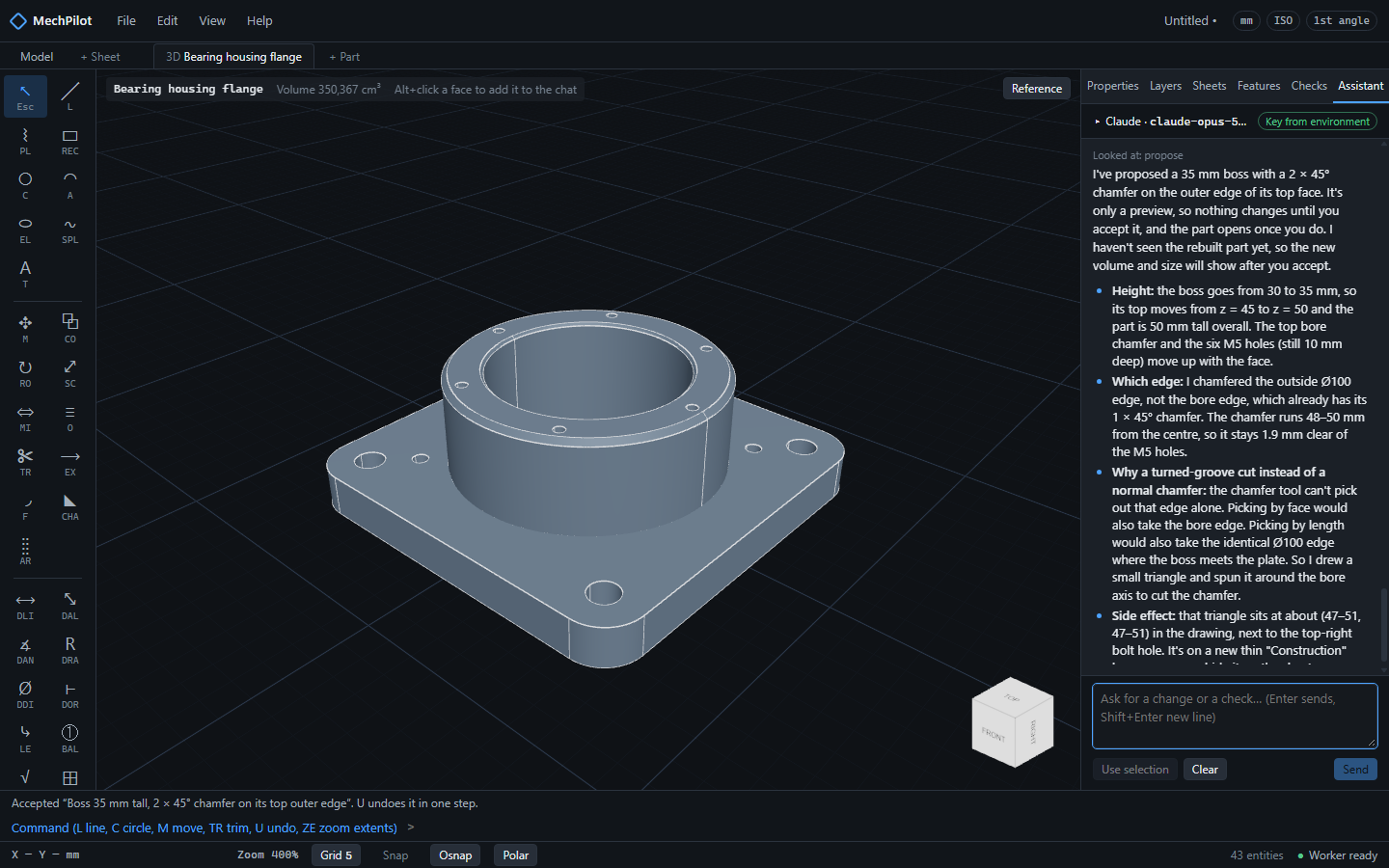
- In the 3D viewer, Alt+click the top face of the boss. A chip "Face … normal +Z" appears in the chat input.
- Type:
You typeChamfer the outer edge of this face 2 × 45° and make the boss 35 mm tall instead.
Accept. Then in the Model tab select the four M10 holes (window selection), click Use selection, and type:
You typeChange these to M12 clearance holes and widen the pattern to 114 × 114.
Accept; the holes, their dimensions and the hole feature follow.
Step 4 The drawing and the PDF
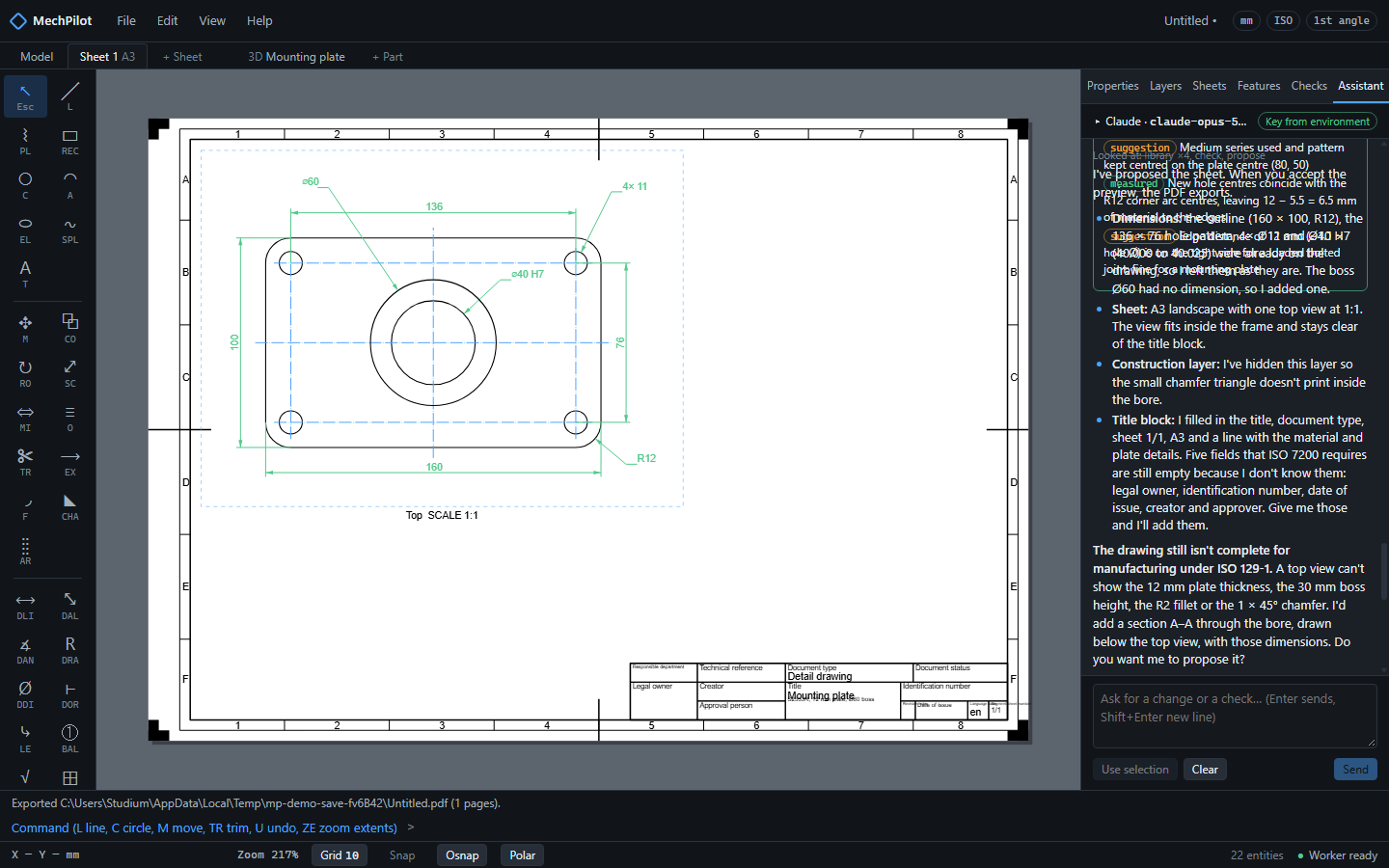
You typeDimension it to ISO 129-1 with the H7 fits, add a front view in full section through the bore axis, put everything on an A2 sheet at 1:1 with the title block filled in (title "Bearing housing", material EN-GJL-250), and export the PDF.
Accept. The sheet tab opens, the PDF save dialog appears; save and open the PDF.
Step 5 If something goes wrong
- The impossible request in step 2 is the honesty moment: the assistant does not pretend; it measures, says why, and asks which way to go.
- No answer, or a key error: the Assistant tab says why in plain words; check the key and the model name.
- A proposal you do not like: Reject, or accept and press
U. - The assistant never edits silently: look for the card, nothing changes without Accept.
Try it yourself
Get MechPilot, open the Assistant tab, add your own Claude, OpenAI or Gemini API key, and type the first prompt:
You typeA bearing housing flange for a 6207 bearing: a 140 × 140 mm square plate with R15 corners, four Ø11 clearance holes for M10 on a 110 × 110 pattern, two Ø6 H7 dowel holes on one diagonal at 60 mm from the centre, and a central Ø72 H7 bore for the bearing's outer ring.